

![Sony a7 V Camera Settings for Use in an Ikelite Underwater Housing [VIDEO]](http://www.ikelite.com/cdn/shop/articles/sony-a7v-settings-blog-cover_90a49fa6-39c6-4fbd-a7a4-bc5d1a6c5b1c.jpg?v=1781271501&width=1500)
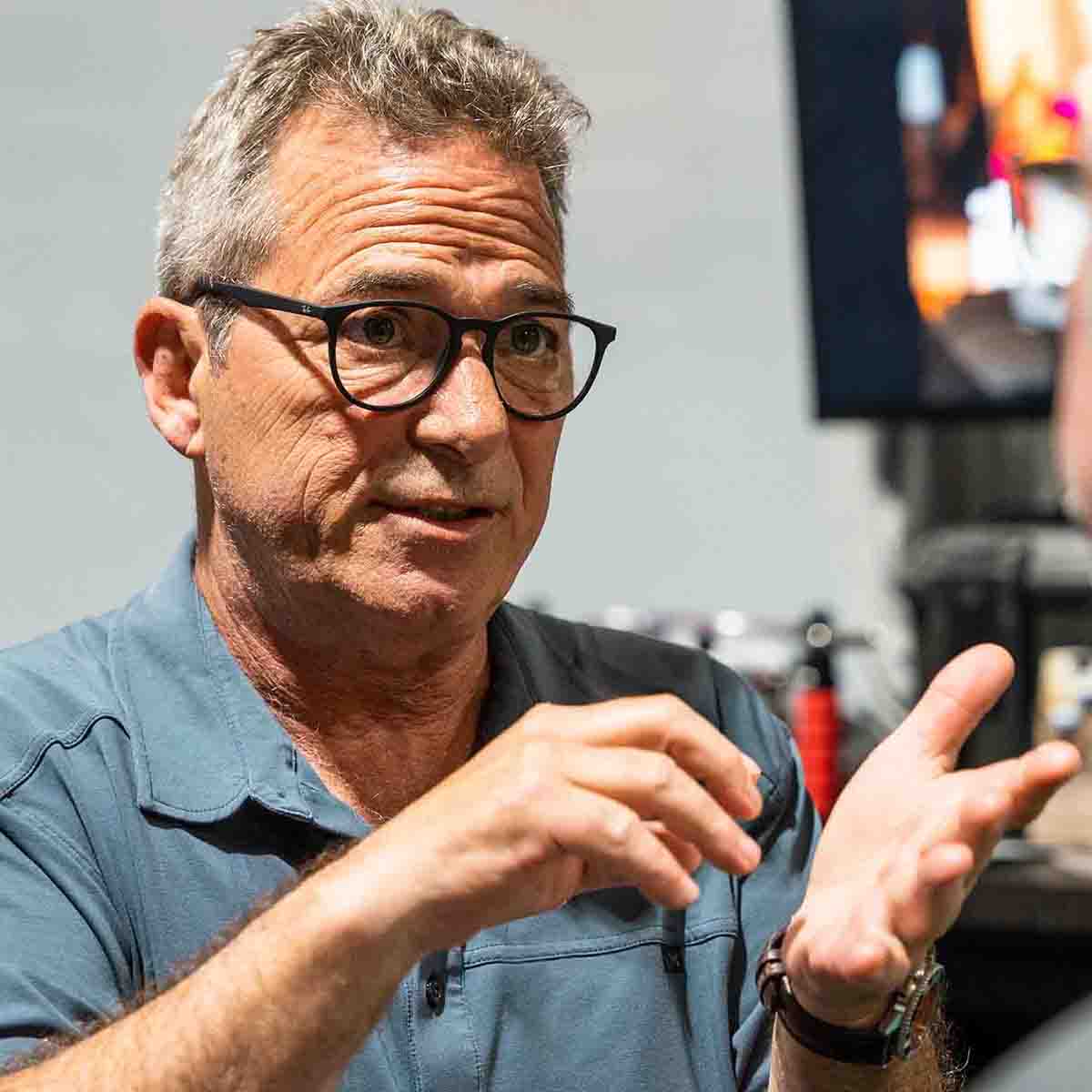
Featuring Logan Wood
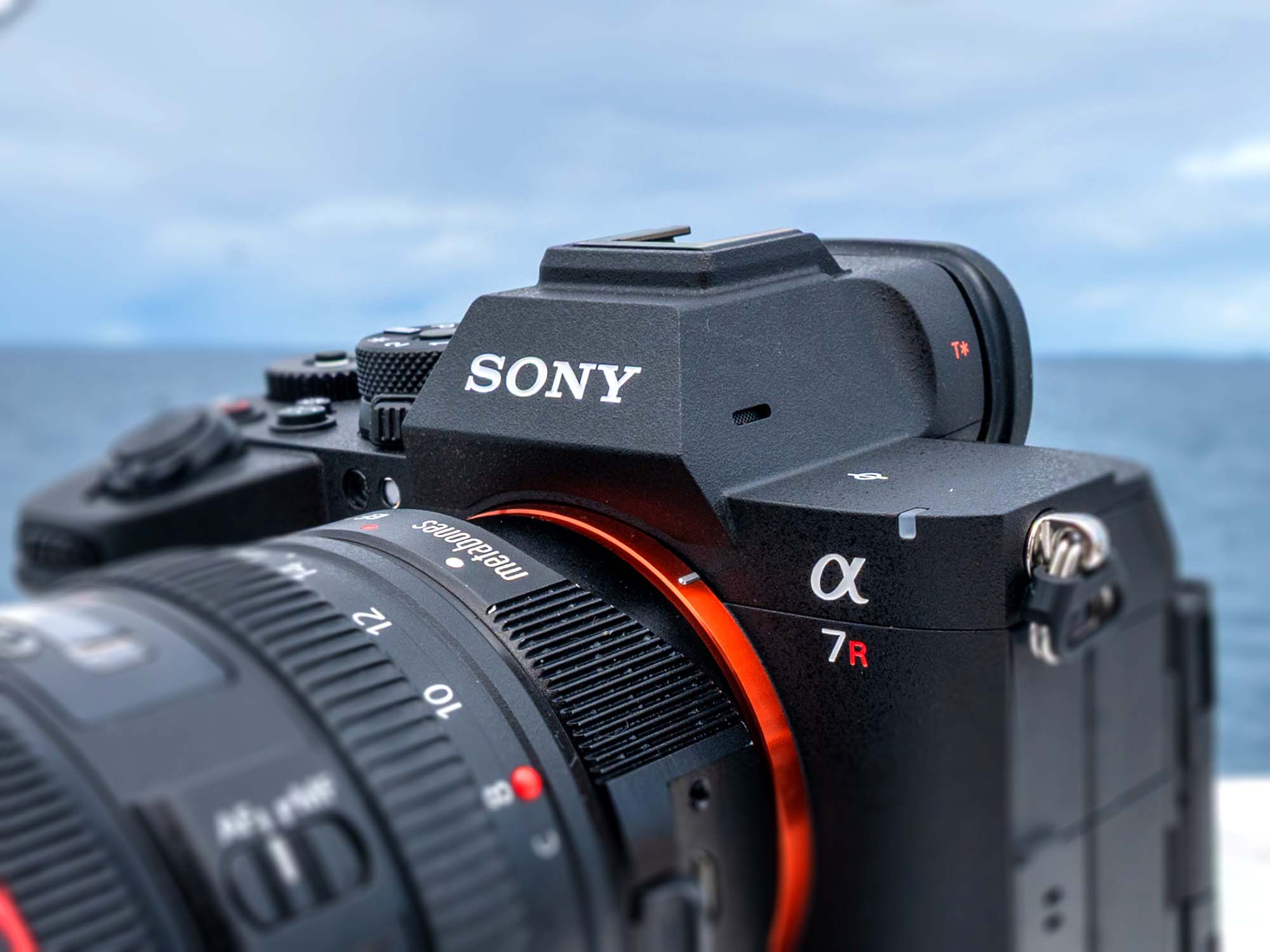
Starting with the right camera settings can make your life A LOT easier when you get ready to take your Sony a7-series camera underwater in a housing. Ikelite Video Producer Logan Wood shows you how with the newer Sony a7 V camera, but the same settings will apply to other cameras in this series which can be used interchangeably in the same Ikelite Underwater Housing including: Sony a7 IV, a7R V, a7R VI.
If you'd like to see a written reference to all of the settings mentioned in this video, scroll down.
I recently got to take the Sony a7 V underwater in the Dominican Republic and I was very happy with how this camera operates straight out of the box. However, like any camera that's in an underwater housing, there are a few things to change to make you an efficient photographer or videographer underwater. So, let's talk settings that are going to set you up for success underwater. We'll cover: photo settings for both strobe and ambient light shooting, custom buttons that will make you more efficient underwater, and video settings.
Jump to:
Camera Menu Settings
To start I've reset this camera to factory defaults so it's as if I've just pulled it out of the box. The first thing we're going to do is turn the dial to "M" for manual, this will give us full control over the camera's settings.

To access full control of your Sony a7 V's camera settings, turn the Mode Dial to Manual.
Image Quality Settings
I always shoot in RAW because it gives me the most flexibility in post-processing to change things like white balance and exposure.
Menu > Shooting Page > Image Quality Settings > change from JPEG to RAW
Then navigate to File Type > select Lossless Compressed
Shutter Settings for Shooting With Strobes
Both of these settings are very important for your Ikelite strobes and TTL to work properly.
Shooting Menu > Shutter/Silent > Silent Mode Settings > OFF
Shooting Menu > Shutter Type > Mechanical Shutter
Settings For Shooting with a PZ Lens
Use these settings if you're shooting with a Power Zoom (PZ) lens, which allows you to zoom the lens internally without needing to twist the actual zoom mechanism on the lens itself. These settings will allow your camera to zoom the lens as fast as possible.
If you're not shooting with a PZ lens you can skip this step.
Shooting Menu > Zoom > Custom Key Z Speed > Fixed Speed Standby > select 8
Custom Key Z Speed > Fixed Speed Record > select 8
LEARN MORE: POWER ZOOM Your Sony PZ Lens Underwater [VIDEO]
Live View Display
Which option you select here will depend on whether you're shooting with or without strobes. Keeping the Live View Display OFF means that the screen on the back of your camera will stay bright with your strobes on and no matter what settings you change on your camera, this will help you compose your image.
If you're shooting strobes: Shooting Menu > Live View Display Set > OFF
If you're shooting ambient light you will want this setting ON this way when you change your shutter speed, ISO, or aperture, you will see how the exposure is going to be affected by those settings.
If you're shooting ambient light: Shooting Menu > Live View Display Set > ON
Metering Mode
The following settings are dependent upon what type of subject you're shooting.
If you're shooting wide angle: Exposure/Color Menu > Metering > Metering Mode > Multi
If you're shooting macro: Exposure/Color Menu > Metering > Metering Mode > Spot Standard
Adjust your spot metering point so that the spot the camera is using to meter off of will be linked to what you're focusing on.
Metering Mode > Metering > Spot Metering Point > Focus Point Link
Flash Mode
Choose from one of these two options when shooting with your Ikelite TTL strobes.
Exposure/Color Menu > Flash Mode > Fill-flash -OR- Rear Sync
Ensure both the Red Eye Reduction and D-Range Optimizer are set to OFF, these settings are important to change so that your Ikelite strobes work properly.
Exposure/Color Menu > Flash > Red Eye Reduction > OFF
Exposure/Color Menu > Color/Tone > D-Range Optimizer > OFF

During my week in Dominican Republic I shot the Sony a7 V with the RC232 TTL Underwater Strobes with Video Light. Just like the a7 V camera these strobes are designed for hybrid shooters.
Focus Modes
For focus I want to select Continuous Autofocus (AF-C) so that the camera continuously autofocuses on my subject even as I and/or my subject move underwater.
Focus Menu > AF/MF > Focus Mode > Continuous AF
The following setting will be up to personal preference. If you prefer the traditional way of shooting, or you've just picked up this camera and you're new to shooting underwater, I recommend keeping the following setting ON. However, if you prefer to use back button focus then you can turn this setting OFF.
Focus Menu > AF/MF > AF w/ Shutter > OFF -OR- ON
LEARN MORE: Getting it Sharp: Back Button Focus
Focus Area
The following settings are dependent upon what type of subject you're shooting.
If you're shooting wide angle: Focus Menu > Focus Area > Wide -OR- Zone
If you're shooting macro: Focus Menu > Focus Area > Center Fix -OR- Expand Spot
Subject Recognition
After a week shooting this camera I found the subject recognition to be particularly amazing and a real upgrade form the Sony a7 IV, so I definitely want to make sure this setting is ON.
Focus Menu > Subject Recognition > Subject Recog in AF > ON
I shot the entire week with the Recognition Target set to AUTO and I found it was very efficient at tracking both divers and animals, but if you're going to be shooting animals-only or humans-only there are settings for that in this menu as well.
Focus Menu > Subject Recognition > Recognition Target > AUTO
The below setting means the camera will show a small box over the subject that it's recognizing, I find this setting helpful so I turn it ON.
Focus Menu > Subject Recognition > Sbj Recog Frm Disp.> ON
Network
I rarely use any of the network or connectivity options, especially underwater and having these on usually just drains the battery anyway so I typically select Airplane Mode to save battery life.
Network Menu > Network Option > Airplane Mode > ON
Different Settings For Still and Movies
This option is good when you're switching between photo and video and want to have different settings.
Setup Menu > Operation Customize > Different Set for Still/MV > Select every option
Record With Shutter
This option is really nice in a housing so that you can record video with the shutter button rather than having to reach over the top of the housing to press the record button.
Setup Menu > Operation Customize > REC w/ Shutter > ON
Display Settings
I prefer to change my Av/Tv Rotate to reverse, this makes it feel more natural when the camera is in a housing.
Setup Menu > Dial Customize > Av/Tv Rotate > Reverse
Since you can't use the camera's touch screen functionality underwater I turn this setting OFF.
Setup Menu > Touch Operation > OFF
This next setting is very important to deactivate the eye sensor so you can still see the LCD screen when the camera is in the housing.
Setup Menu > Finder/Monitor > Select Finder/Monitor > Monitor (Manual)
I usually leave the Monitor Brightness on default, but if it is a bright and sunny day or you're having trouble seeing your LCD screen you can change this to Sunny Weather, although keep in mind this will drain your battery faster.
Setup Menu > Finder/Monitor > Monitor Brightness > Default -OR- Sunny Weather
I prefer the Vertical Display OFF as you'll be moving a lot of different directions underwater and you don't want your display flipping randomly.
Setup Menu > Finder/Monitor > Vertical Display > OFF
I like to change the Auto Review to two second that will the photo pops up on the back of the screen for about two seconds, but you can change this to your preference.
Setup Menu > Display Option > Auto Review > 2 sec
Power Save
Power save options are very important when you're underwater and can't change your battery on a moment's notice. I like to set this to either one minute or 30 seconds depending on how much battery I'm burning through from shooting photo or video.
Setup Menu > Power Setting Option > Power Save > 1 min -OR- 30 sec
Another important power save option, especially if you're shooting video, is to change the Auto Power Off Temp to HIGH. This will give your camera a little more heat tolerance and won't overheat as quickly.
Setup Menu > Power Setting Option > Auto Power OFF Temp. > High
Using a USB-C Bulkhead for Charging & Data Transfer
If you're using a USB-C Bulkhead for Charging & Data Transfer, which I highly recommend you do, you'll want to note that the PORT 1 connection option is much faster than PORT 2. So, when you're attaching the USB-C Hyper-Flex Cable from the housing to the camera you'll want to use PORT 1.
LEARN MORE: RE-charge Between Dives // USB-C Bulkhead SAVES THE DAY!! [VIDEO]

Attach your USB-C Hyper-Flex Cable from the housing to PORT1 on your camera (as pictured here).
Settings For Using an External Monitor
If you're using a monitor and want a clean feed of what your camera sees, turn the HDMI Info Display OFF. However, if you need some help seeing the back of your screen and you want to see all those settings that are typically on the LCD screen, keep this setting ON.
Setup Menu > External Output > HDMI Info. Display > ON -OR- OFF
LEARN MORE: Large Bore M24 Port Modifications for HDMI Monitor Bulkheads
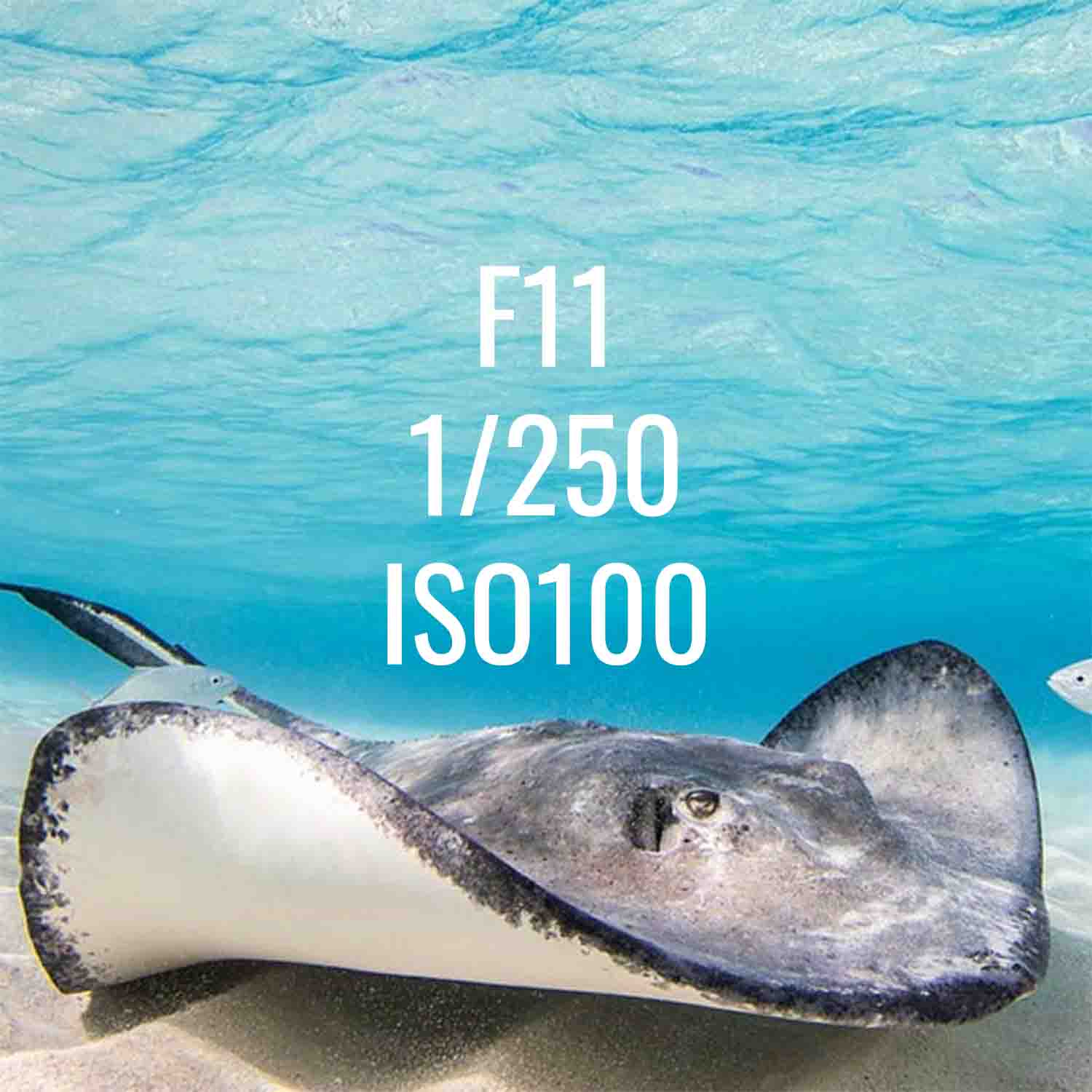
Quick Reference Exposure Settings for Photography
These are the settings I jump in the water with to get started. I'll adjust these as needed depending on the subject and scene, but this is typically a good start.
- Shutter Speed: 1/160
- Aperture: f/8
- ISO: Anywhere between 100-400
- Strobes: I always set my strobes to TTL which ensures you get a good exposure every time.
Custom Key/Dial Settings
Assigning custom buttons is going to make your camera a lot easier to use while you're diving and shooting underwater. These settings can be different for everyone, and it's really up to personal preference, but as someone who's spent a lot of time underwater shooting with Ikelite housings these are the settings I find most useful.
I use the same custom buttons for photo and video, but you can change these custom buttons to be different for photo/video if you prefer.

You only have so much time underwater, don't waste it messing around with cumbersome settings. Assigning custom buttons will streamline your shooting process.
Reassign AEL Button to Toggle Between Focus Modes
Setup Menu > Operation Customize > Custom Key/Dial Set > Rear1 > 1. AEL hold (AEL Button) > then navigate to AF/MF > select Focus Mode
Reassign Drive Mode (Left Button on D-Pad) to ISO
Setup Menu > Operation Customize > Custom Key/Dial Set > Rear2 > 3. Drive Mode (Left Button) > then navigate to Exposure > select ISO
Reassign ISO (Right Button on D-Pad) to White Balance
Having the white balance on the D-Pad's Right Button is more for when I'm shooting video.
Setup Menu > Operation Customize > Custom Key/Dial Set > Rear2 > 4. ISO (Right Button) > then navigate to White Balance > select White Balance
Custom Buttons for Shooting with a PZ Lens
The following two custom buttons are for use with a PZ lens. This is really useful because with these buttons you can zoom your lens with the buttons on the back of your camera and won't need to add a zoom gear to your underwater setup.
If you don't plan to use a PZ lens you can skip this step.
Setup Menu > Operation Customize > Custom Key/Dial Set > Rear2 > 2. Not set (Center Button) > then navigate to Zoom > select zoom telephoto Zoom Operation (T)
Setup Menu > Operation Customize > Custom Key/Dial Set > Rear2 > 5. Not set (Down Button) > then navigate to Zoom > select zoom wide Zoom Operation (W)
Reassign Playback Custom Button 3 (C3) for Star Rating
One last customization I like to make is change the C3 Button to Rating Set. I find this customization is particularly useful topside, and if you have enough time underwater it's a great asset there too. If I'm shooting a ton of photos and I know in the moment that I got one that I really like, I'll go into the playback menu and when I'm looking through my photos I can just hit the C3 button to give it a start. That way, when I'm back at my computer, instead of sifting through potentially hundreds of photos to find the one that I remember taking and really liking, I can just filter the images by rating and those starred photos will pop up.
Setup Menu > Operation Customize > Playback Custom Key Setting > Rear > 3. Follow Custom > Rating > Deselect all options except 1-Star > Enter
Video Recording Settings
Let's dive into the video settings. First, go back to the shooting screen and change the Mode Dial from Photo to Video. Now hit the menu button again and you'll see in the shooting menu that the icon changed from a photo camera to a video camera and you can change all your settings here. If you scroll one stop up from the video shooting menu icon you'll be in the Main Menu and you can change all of your video settings here, which I find to be a bit quicker and more useful.
Video Codec
The first thing we want to tackle is your video codec, this is essentially how your camera compresses your video files and has a lot to do with the output quality of your video.
For most people I would recommend shooting XAVC HS 4K, this is a H.265 codec which is a high-quality video file that can be shot on with regular SD cards.
Main Menu > Menu 1 > XAVC S HD (File Format) > XAVC HS 4K
If you really want to push this camera to the highest quality footage internally, I would choose XAVC S-I 4K. This will give you less compressed files that are a bit higher quality. Then you'll also want to select the highest Record Setting option as well. However, you will need a V90 SD card or a CF Express Type A card to use these settings.
Main Menu > Menu 1 > File Format > XAVC S-I 4K
LEARN MORE: Choosing the Right SD Card for Photos and Video [VIDEO]
Record Setting
Then we want to adjust the record settings, and we want to choose the highest option, 4:2:2 10bit.
Main Menu > Menu 1 > Record Setting > Select 100M 4:2:2 10bit
Frame Rate
I always shoot in either 60p or 120p, but most of the time I'm shooting in 60p unless I know I really want to slow it down.
Main Menu > Menu 1 > Frame Rate > 60p -OR- 120p
LEARN MORE: Setting the Right Frame Rate and Shutter Speed for Your Underwater Footage [VIDEO]
White Balance
Underwater you'll need to manually white balance fairly often, about every 10 feet (3 meters) or so. Which is what makes setting up a custom button for white balance so convenient.
Earlier we customized the Right Button on the D-Pad as the White Balance button. Now, all you'll need to do is hit the Right Button, by default it is in Auto White Balance, scroll down to Custom 1 (custom white balance), and hit right again it goes to Set, then hit the center button it takes you to the custom white balance screen.
Now, underwater, all you need to do is take something middle-gray or close to it, like a scuba tank, your palm, on the sand, and white balance. Once this is set all you'll need to do underwater is the following:
Right Button on D-Pad > Right Button on D-Pad (Select) > Center Button > Set your white balance
LEARN MORE: Sony Custom White Balance Shortcut for Use in Underwater Housings [VIDEO]

Setting a custom white balance button is one of the best ways to improve efficiency when shooting video underwater.
Shooting in Log
If you're just starting out in underwater video or you don't want to edit your video's colors then you can skip this step. But, if you're looking to take your underwater videography a step further, try shooting in Log.
Main Menu > Menu 2 > Log Shooting Setting > Log Shooting > ON
Once that's turned on ensure your Color Gamut is set to S-Gamut3.Cine/S-Log3
Main Menu > Menu 2 > Log Shooting Setting > Color Gamut > S-Gamut3.Cine/S-Log3
Then, you'll want to ensure Embed LUT is OFF
Main Menu > Menu 2 > Log Shooting Setting > Color Gamut > Embed LUT File > OFF
Return back to Menu 1 to Select LUT, I find s709 works great.
Main Menu > Menu 1 > Select LUT > Select s709 -OR- either select another preinstalled LUT your own LUT
LEARN MORE: Should You Be Shooting LOG Video Underwater?
Quick Reference Exposure Settings for Videography
These are the general exposure settings I start out with for video. You can adjust these to your shooting style and subject. All of these settings can be adjusted in Main Menu > Menu 1.
- Frame Rate: 60p or 120p, but I typically shoot at 60p.
- Shutter Speed: 1/125 when shooting at 60p. Your Shutter Speed will be chosen based off of your Frame Rate using the 180º Rule which states that you want your Shutter Speed set at double your Frame Rate.
- Aperture: f/8
- ISO: 800. but adjust according to what you want your exposure to be.
These are all my recommended camera, exposure, and custom button settings when shooting the Sony a7 V in an underwater housing. If you have any questions about this, please contact us and we'll be happy to help.
Get the Gear
- 200DL Deluxe Underwater Housing for Sony a7 IV, a7 V, a7R V # 71479-DLX
- Recommended Lighting: Dual RC232 Underwater Strobe with Video Light [Fiber Optic]
Additional Viewing
Sony Underwater Hybrid Shooters Herald the New a7 V!
Sony a7 V Underwater in Dominican Republic 4K [VIDEO]
Sony a7 V Underwater Photography Results from the Pacific Northwest
Setting the Right Frame Rate and Shutter Speed for Your Underwater Footage [VIDEO]
Choosing the Right SD Card for Photos and Video [VIDEO]
Sony Custom White Balance Shortcut for Use in Underwater Housings [VIDEO]

Logan Wood is a published photographer, cinematographer, and Producer at Ikelite. Stemming from a great appreciation for the outdoors and living an active lifestyle, his work focuses on capturing and sharing the natural world through the latest technologies. When not in the studio, Logan can be found cruising on his bike, going to concerts, and researching where to go next. You can see more of his work at loganwood.net and on Instagram @jlowood
![Locking Assembly Replacement for an ULTRAcompact Housing [VIDEO]](http://www.ikelite.com/cdn/shop/articles/locking-assembly-ultracompact-blog-cover_c6cb9066-396c-4365-ad50-88a65a76f94f.jpg?v=1780661232&width=2000)